
How to Use Visual Edit
1
Click the Design Button
Click the Design button in the bottom-left corner of the editor to enter Visual Edit mode.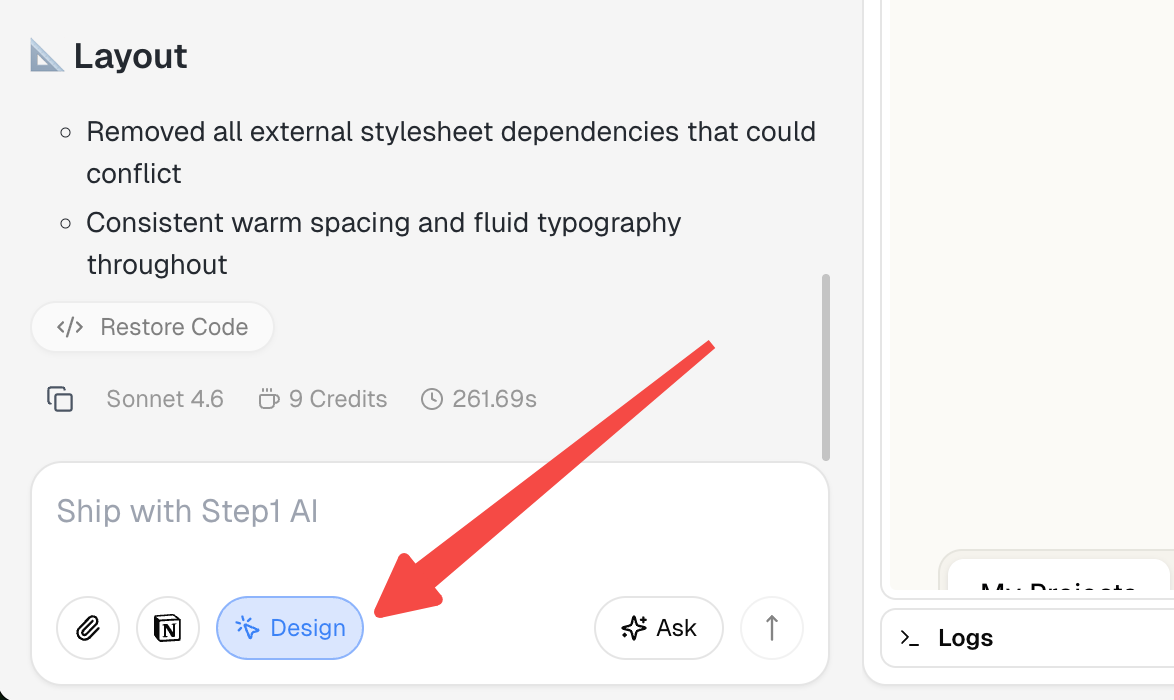
2
Click to Select Elements
Hover over any area—it highlights with a blue outline. Click to select it—it turns green.You can click multiple elements to select them all at once. Each gets an auto-assigned number (#1, #2…). Multi-select lets you express operations that a single element can’t describe—like swapping two sections, changing a row of cards to a vertical stack, or aligning styles across multiple elements at once.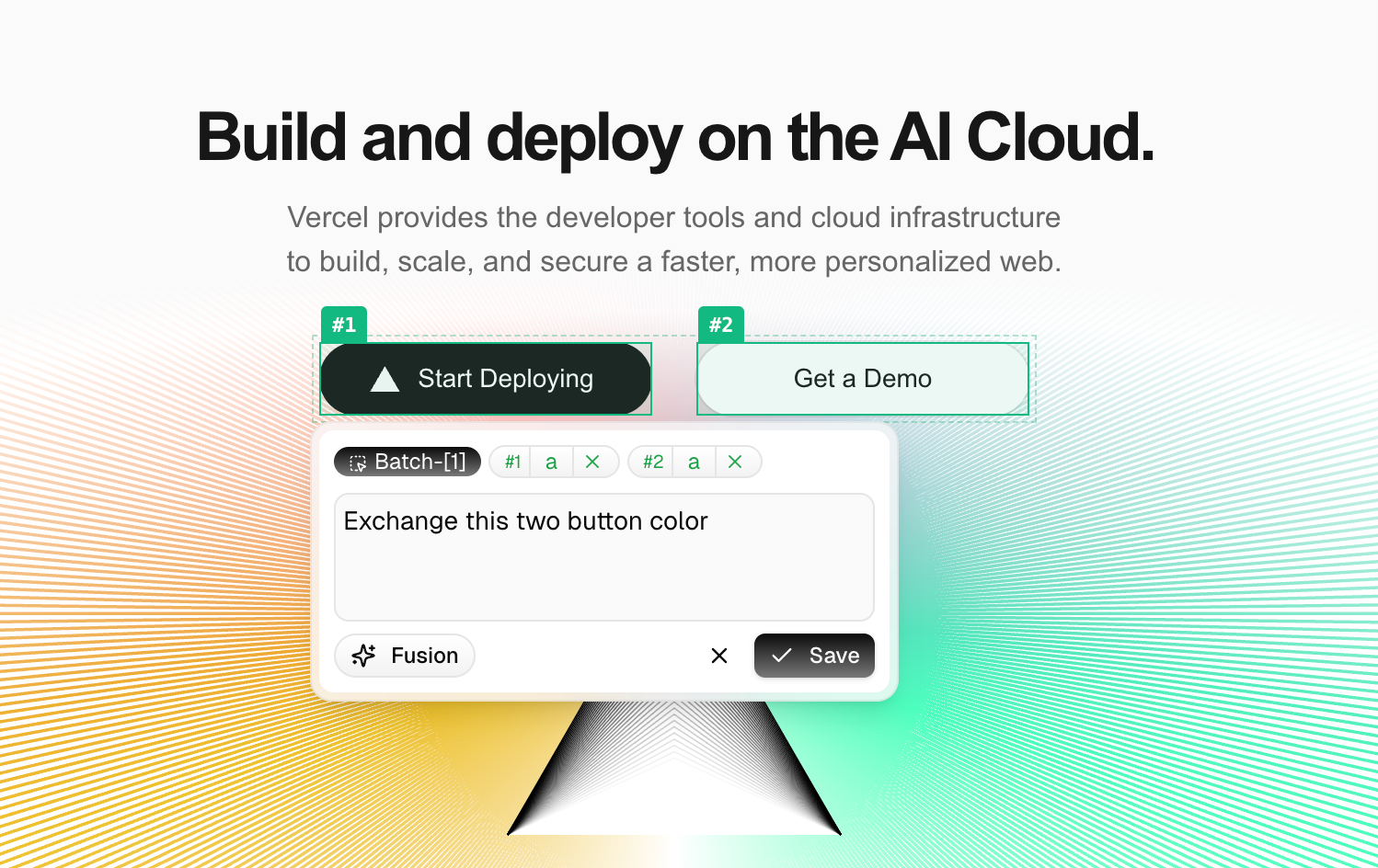
3
Describe the Changes in Natural Language
Once you’ve selected your elements, describe what you want in the chat. Use the numbers to reference different elements:
Example: “Swap #1 and #2 left-to-right; change #3 #4 #5 from horizontal to vertical stack with 24px gap”
4
Click Save to Apply
Click Save. AI modifies only the elements you selected—everything else stays the same.
Multi-Element Coordination
Visual Edit supports selecting multiple elements at once, unlocking cross-element adjustments that can all be done in a single instruction:Swap Two Sections
Swap Two Sections
Select two sections on the page (#1 Hero, #2 Features) and describe:
“Swap the positions of #1 and #2, leave everything else unchanged”Great for quickly testing different information hierarchies—show product value first or lead with features.
Restructure a Group's Layout Direction
Restructure a Group's Layout Direction
Select a row of Feature Cards (#1 #2 #3) and describe:
“Change #1 #2 #3 from a three-column horizontal layout to a single-column vertical stack, cards full-width, 24px gap”AI treats the whole group as one layout unit—alignment and spacing done in one pass.
Strictly Align Styles Across Elements
Strictly Align Styles Across Elements
Select a heading, subheading, and CTA button (#1 #2 #3) and describe:
“Set #1 #2 #3 text color to #0F172A. #1 font-weight 700, #2 font-weight 400, #3 keep existing weight”AI has the full context of all three elements and generates consistent styles in one shot.
Flip an Image-Text Pair
Flip an Image-Text Pair
Select the left image and right text block (#1 image, #2 text) and describe:
“Swap #1 and #2 left-to-right—image on the right, text on the left, keep the two-column layout intact”AI understands this is a symmetric image-text structure and flips it without breaking the container proportions.
Rewrite a Group of Copy in a Consistent Voice
Rewrite a Group of Copy in a Consistent Voice
Select the headlines of three Feature Cards (#1 #2 #3) and describe:
“Rewrite all of #1 #2 #3 as action-first sentences, concise and direct, aimed at developers”AI treats the three as one content group—tone stays naturally consistent.
Visual Edit vs. AI Chat
Learn More
Quick Start
The full create, refine, and publish workflow
Prompt Guide
Learn to use AI chat for more complex changes