
1. Create a Project
Whether you have a reference site in mind, want to continue developing an existing site, or are starting from a blank slate—Step1.dev supports three ways to get started:Clone Any Website
Clone Any Website
Click clone on any website and get an exact copy in seconds—looks and feels identical to the original.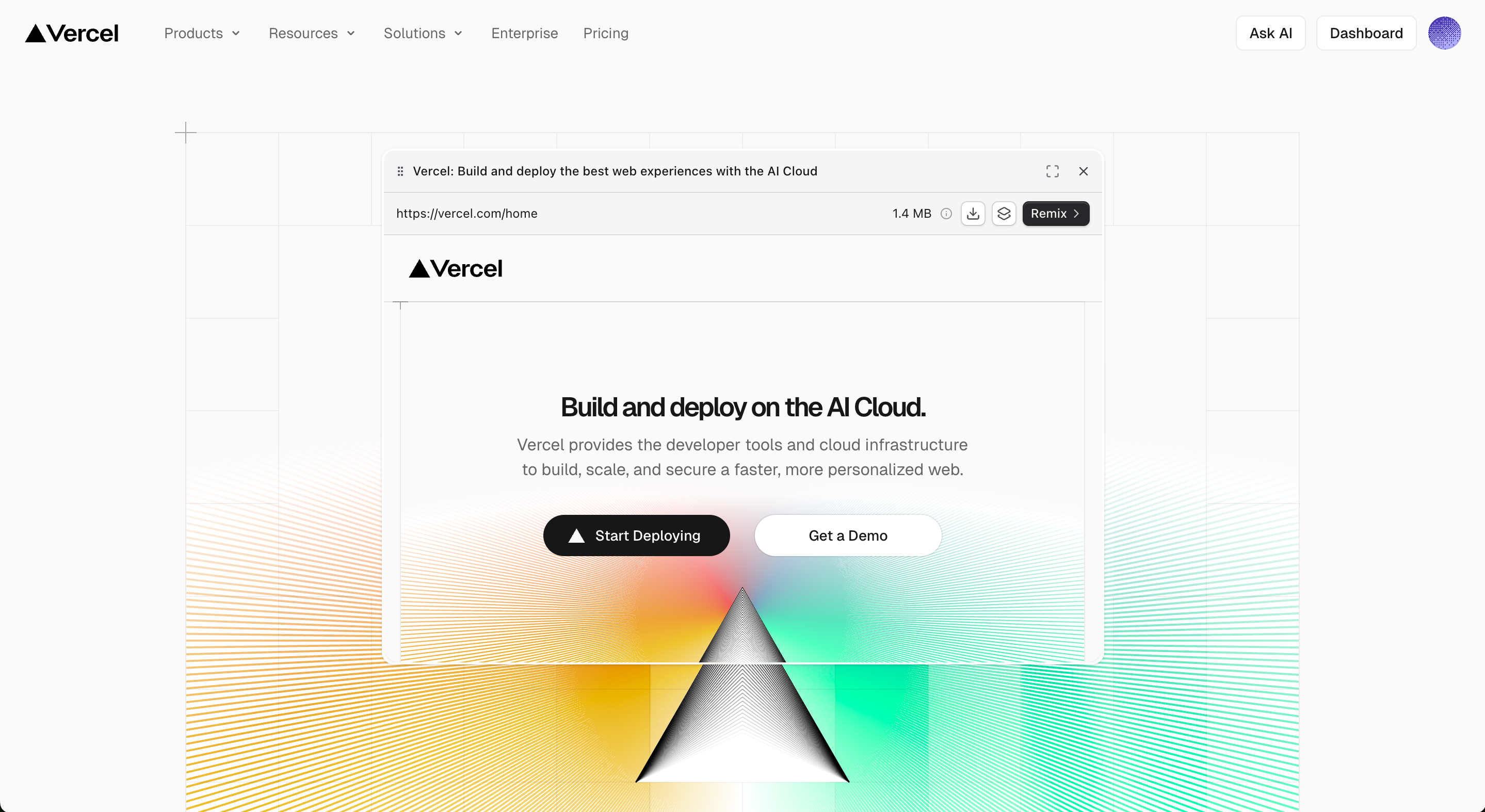
1
Install the Browser Extension
Install the Step1.dev extension from the Chrome Web Store. Once installed, the icon appears in your browser toolbar.
Install Step1.dev Extension
Get it free on the Chrome Web Store
2
Click Clone on Any Website
Open the site you want to clone. Click the Step1.dev extension icon and select Clone this page.
3
Jump Straight to the Editor
Step1.dev analyzes the page and opens it in the editor automatically. Your cloned version is ready instantly.
4
Edit with Natural Language
Describe your changes in the AI chat—swap out the logo, update the copy, change the colors, or add new sections.
Example: “Replace the navbar logo with ours, update all copy to match our brand, and change the primary color to deep blue.”
- Using a competitor or reference site as a design starting point
- Client sends a reference → clone → swap brand content → deliver
- Upgrading the look of sites generated by v0 / Lovable / Bolt
Import Your Site
Import Your Site
Bring your current website into Step1.dev and keep building on top of it—no need to start over.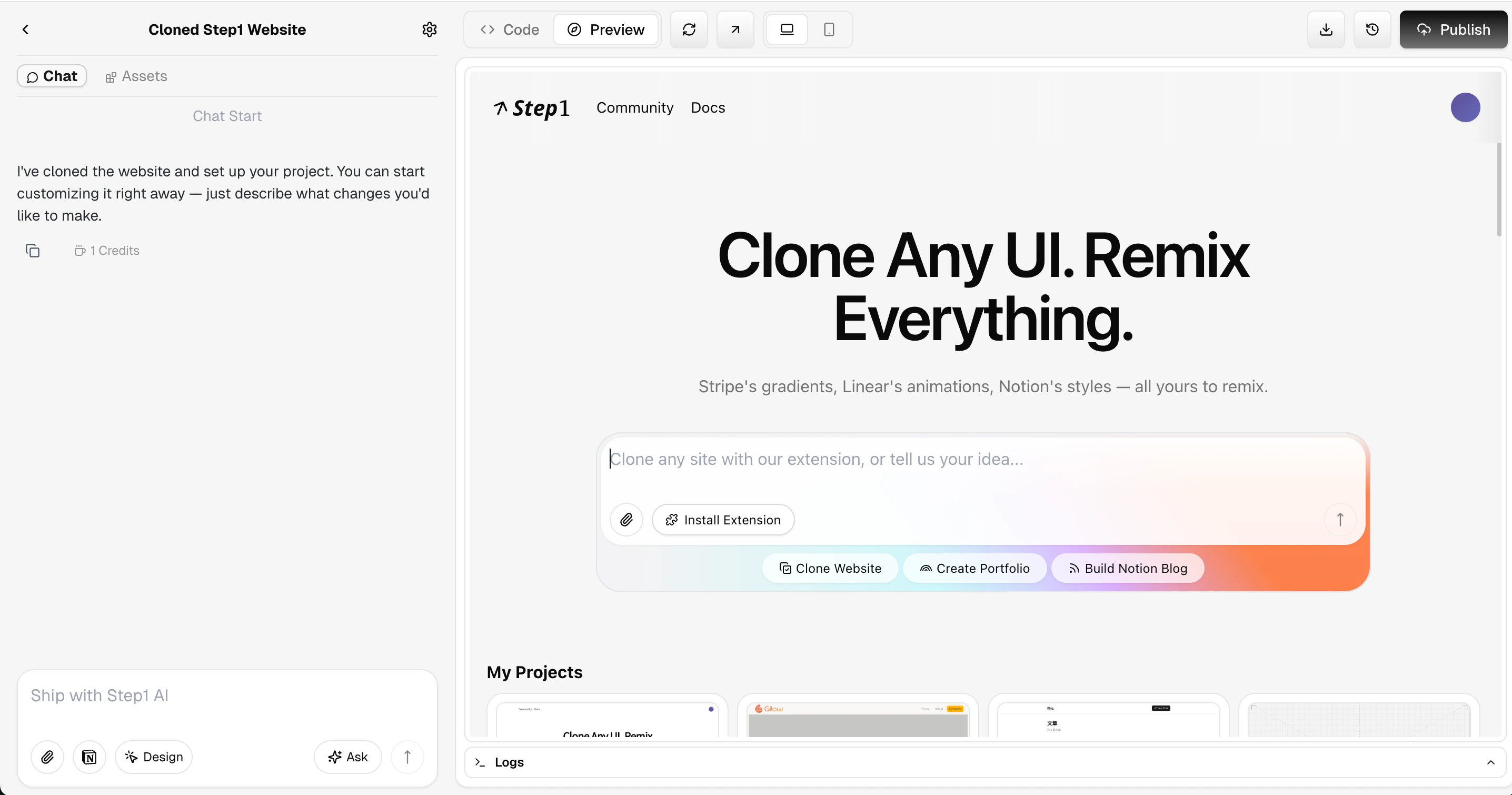
1
Open Your Existing Website
Navigate to the site you want to continue developing.
2
Clone and Import via Extension
Click the Step1.dev extension icon and select Clone this page. The page imports into the editor automatically.
3
Continue Building on Top of It
Modify, extend, or redesign any part of the page using natural language.
Example: “Keep the overall layout. Change the card section to three columns and add a hover animation.”
- Redesigning or upgrading an existing site
- Importing an older site to fuse in new design elements
Only the visual UI is imported—no functionality, logic, or interactions are carried over.
Start from Scratch
Start from Scratch
Describe your idea in natural language and Step1.dev builds the site for you. Type your vision into the prompt on the homepage:Tips:
Examples:
- “Create a SaaS landing page with a feature section, pricing table, and FAQ.”
- “Build a minimal personal portfolio with project showcases and a contact section.”
- The more specific your description, the better the first result
- You can always refine through conversation after the initial generation
- Combine with Magic Fusion to elevate the design by borrowing from sites you love
2. Magic Fusion
Pull design styles or elements from any website and blend them into your project—just point, click, and describe what you want.1
Select a Reference Page and Activate Fusion
In the Assets panel on the left side of the editor, find the reference page you’ve collected (e.g., the Raycast homepage). Click the Fusion button on that asset card.
2
Pick the Design You Want
The Magic Fusion window opens with the full reference page. Hover to highlight any section with a blue outline, then click to select it—it turns green.
3
Tell AI How to Use It
Click Fuse Selection to return to the editor. In the AI chat, describe where to place it and any adjustments you want.
Example: “Add the button group I just selected below the Hero section. Keep the animation but change the color to our brand primary.”
4
AI Completes the Fusion
The Fusing Element indicator appears. AI blends the selected design into your project, automatically matching your existing style.
What fusion modes are available?
What fusion modes are available?
Magic Fusion works at any level of granularity—from layout and visual style down to micro-animations. Just describe what you want in natural language.
- Component Fusion: Select a specific element and blend it into your project
- Full-page Fusion: Migrate the overall look and feel of a reference site into your project
- One-click Style Switch: Let AI switch your entire project’s visual style to match a reference page
Common use cases
Common use cases
- Fuse Stripe’s gradient effects into your landing page
- Apply Linear’s animations to your product showcase
- Use Notion’s clean layout for a documentation site
- Transfer Glossier’s brand feel to a client’s skincare site
3. Refine Your Project
Visual Edit
Visual Edit
Click the Design button in the bottom-left to visually select and precisely edit UI elements.
Learn about Visual Edit
Click any element to edit it directly
Add or Update Features
Add or Update Features
Just describe what you want. Step1.dev handles the rest.
Example: “Polish the UI—clean, modern, and intuitive, similar to Notion’s style.”
Add Image Assets
Add Image Assets
Upload images directly in the chat and describe how to use them. Step1.dev adds them to your project automatically.
Example: “Add this image as the homepage background.”
Version Rollback
Version Rollback
Not happy with a recent change? Click the button at the top-right of the chat, or the
Restore code button below any message, to go back to a previous version.Ask Mode
Ask Mode
Not sure how to approach something? Switch to Ask Mode to get suggestions without changing anything in your project.
- Click the
Askbutton in the bottom-right of the chat
Example: “How can I add drag-and-drop to reschedule calendar events?“
4. Deploy & Publish

Automatic Deployment
Automatic Deployment
Every time you make a change, Step1.dev automatically deploys your project—no manual action needed. Each version gets its own accessible link.
Publish Live
Publish Live
When your project is ready to share publicly, click the Publish button in the top-right corner to go live.
The published link does not update automatically with future changes—each time you want a new version to go live, click Publish again.
Connect a Custom Domain
Connect a Custom Domain
Connect your own domain so the site is accessible at your custom URL.
1
Open Project Settings
Click the settings icon in the top-right and go to the Domain tab.
2
Enter Your Domain and Follow the Steps
Type in your domain and follow the on-screen setup instructions to complete the connection.
Export Your Project
Export Your Project
You can export your project at any time and deploy it to your own server or any cloud platform.Click the button in the top-right to download the full project.
5. Learn More
Magic Fusion Deep Dive
Explore the three fusion modes and advanced techniques
Prompt Guide
Prompt best practices, debug tips, and Clone/Fusion techniques