
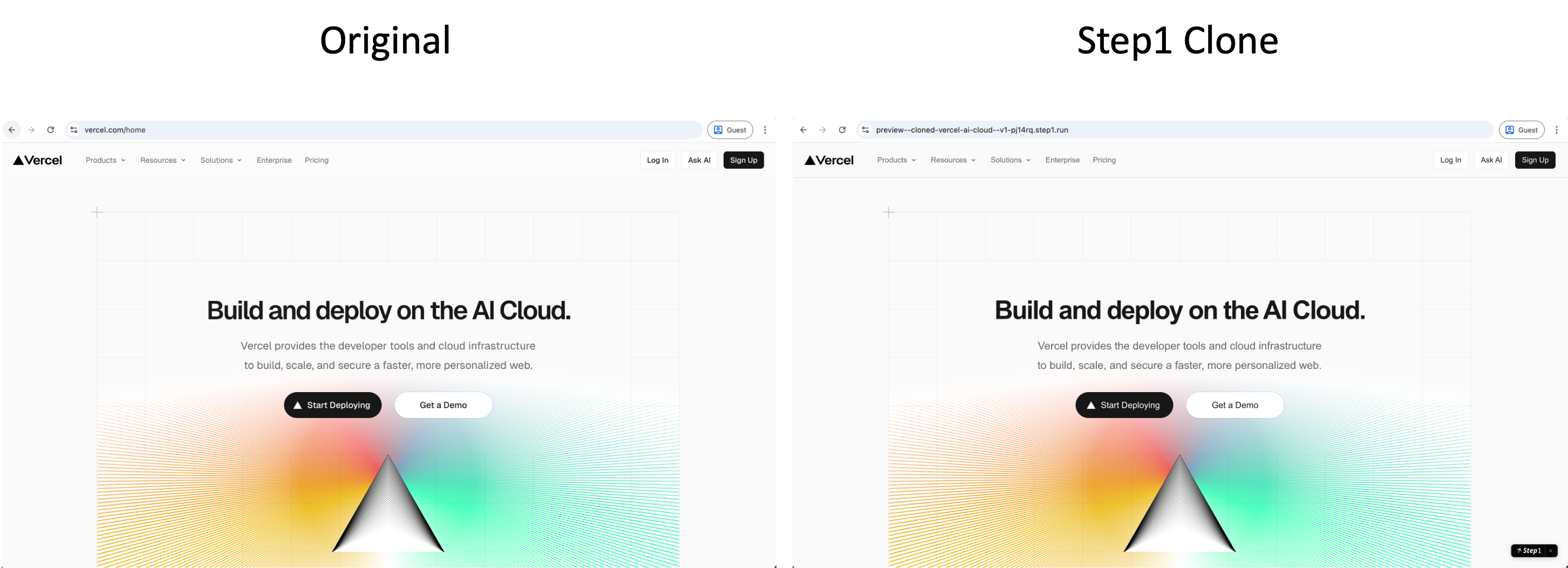
How to Clone a Website
1
Install the Browser Extension
Install the Step1.dev extension from the Chrome Web Store. Once installed, the icon appears in your browser toolbar.
2
Click Clone on Any Website
Navigate to the site you want to clone. Click the Step1.dev extension icon in the toolbar, then click Clone This Page in the popup. Once you hover over page elements, an action bar appears at the top—select Clone Full Page to clone the entire page, or Clone Component to clone just that element.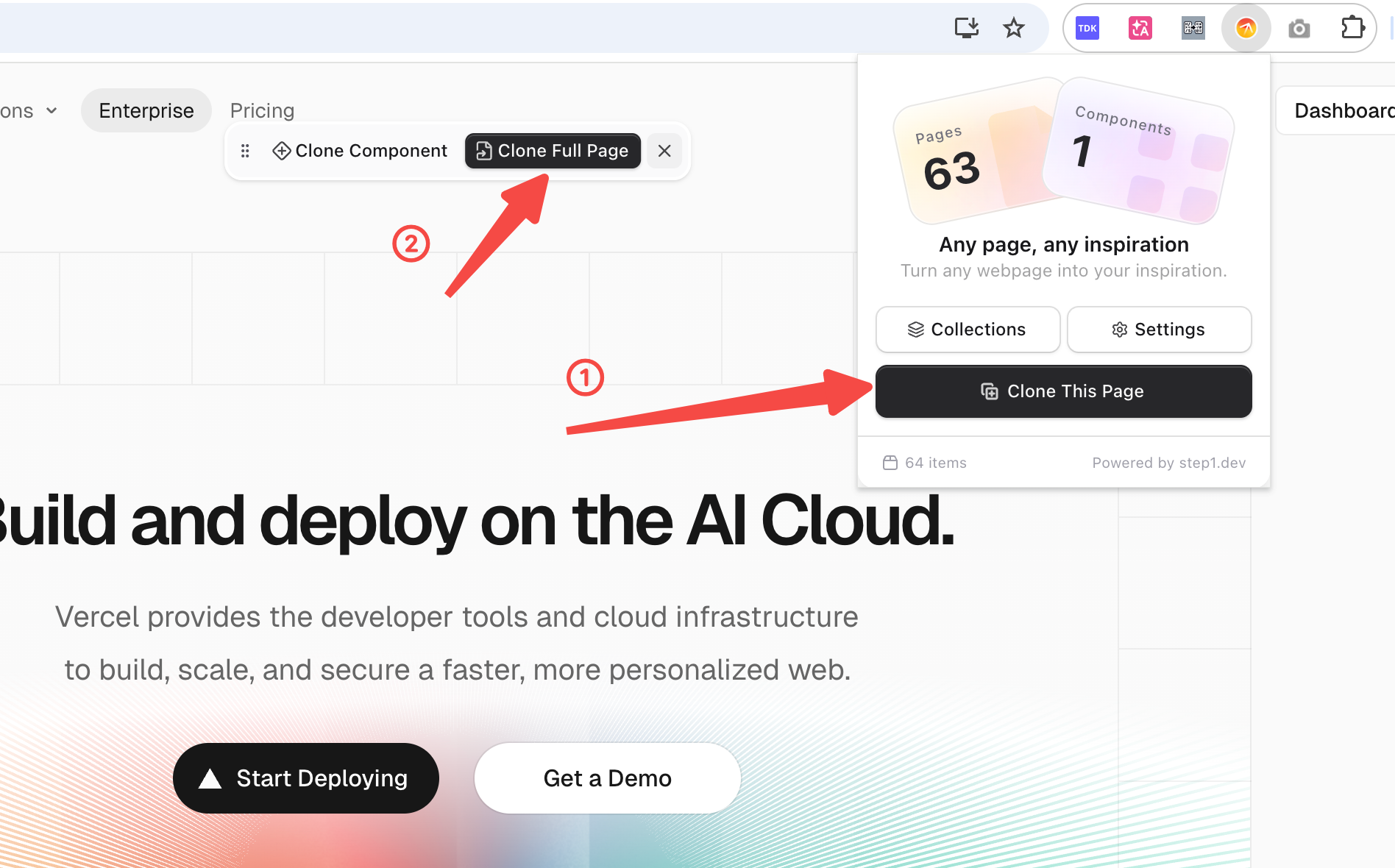
3
Jump Straight to the Editor
Once captured, click Remix—Step1.dev analyzes the page and opens it in the editor automatically. The cloned version is ready instantly.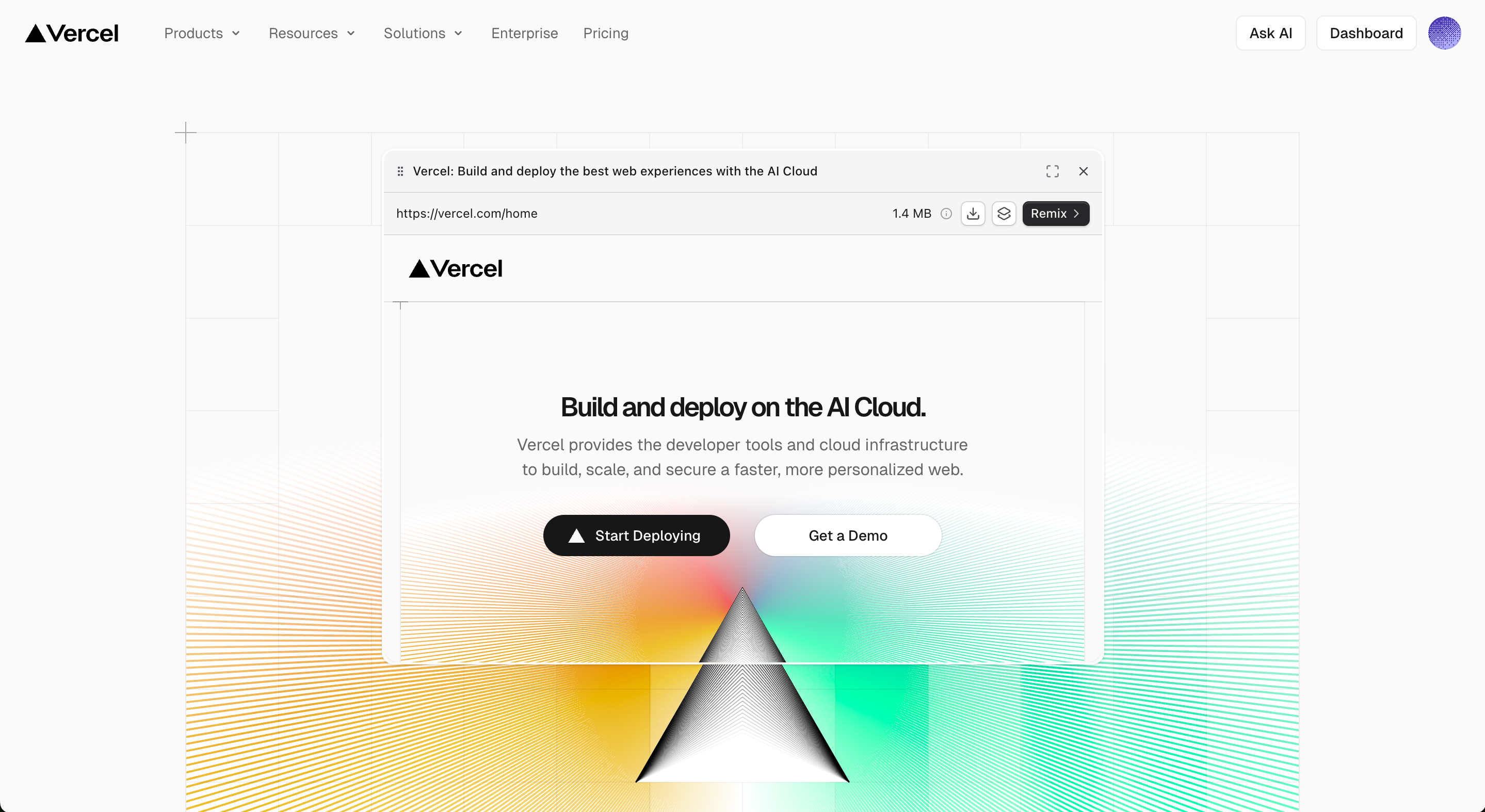
4
Edit with Natural Language
Describe your changes in the AI chat—swap the logo, update the copy, change the colors, or add new features.
Example: “Replace the navbar logo with ours, update all copy to English, and change the primary color to deep blue.”
5
Deploy and Share
Every change auto-deploys instantly. Click the button in the top-right to share your live link.
Use Cases
Clone Any Public Website
Clone Any Public Website
See a design you love? Clone it as your starting point, then swap in your own content.Best for:
- Cloning a competitor or inspiration site as a design foundation
- Upgrading the look of sites generated by v0 / Lovable / Bolt
Import Your Existing Site (Re-development)
Import Your Existing Site (Re-development)
Bring your current website into Step1.dev and keep building on top of it—no need to start over.The process is the same as cloning—open your existing site, click the extension, and it imports directly into the editor.Best for:
Example: “Keep the overall layout. Change the card section to three columns and add a hover animation.”
- Redesigning or upgrading an existing site
- Importing an older site to fuse in new design elements
Common Next Steps After Cloning
Replace Brand Content
Replace Brand Content
The first thing after cloning is usually swapping the original site’s branding with your own. Do it all in one instruction:
Example: “Replace the logo with the uploaded image, change all brand names to our product name, update the primary color to #0066FF, and update the Hero headline to: Build your product faster.”
Fuse in a Different Design Style
Fuse in a Different Design Style
Not satisfied with the cloned design? Use Magic Fusion to blend in elements from other websites.
Learn about Magic Fusion
Extract design elements from any site with point-and-click + natural language
Learn More
Magic Fusion
Blend any website’s design style into your project
Prompt Guide
Clone best practices and prompt techniques