
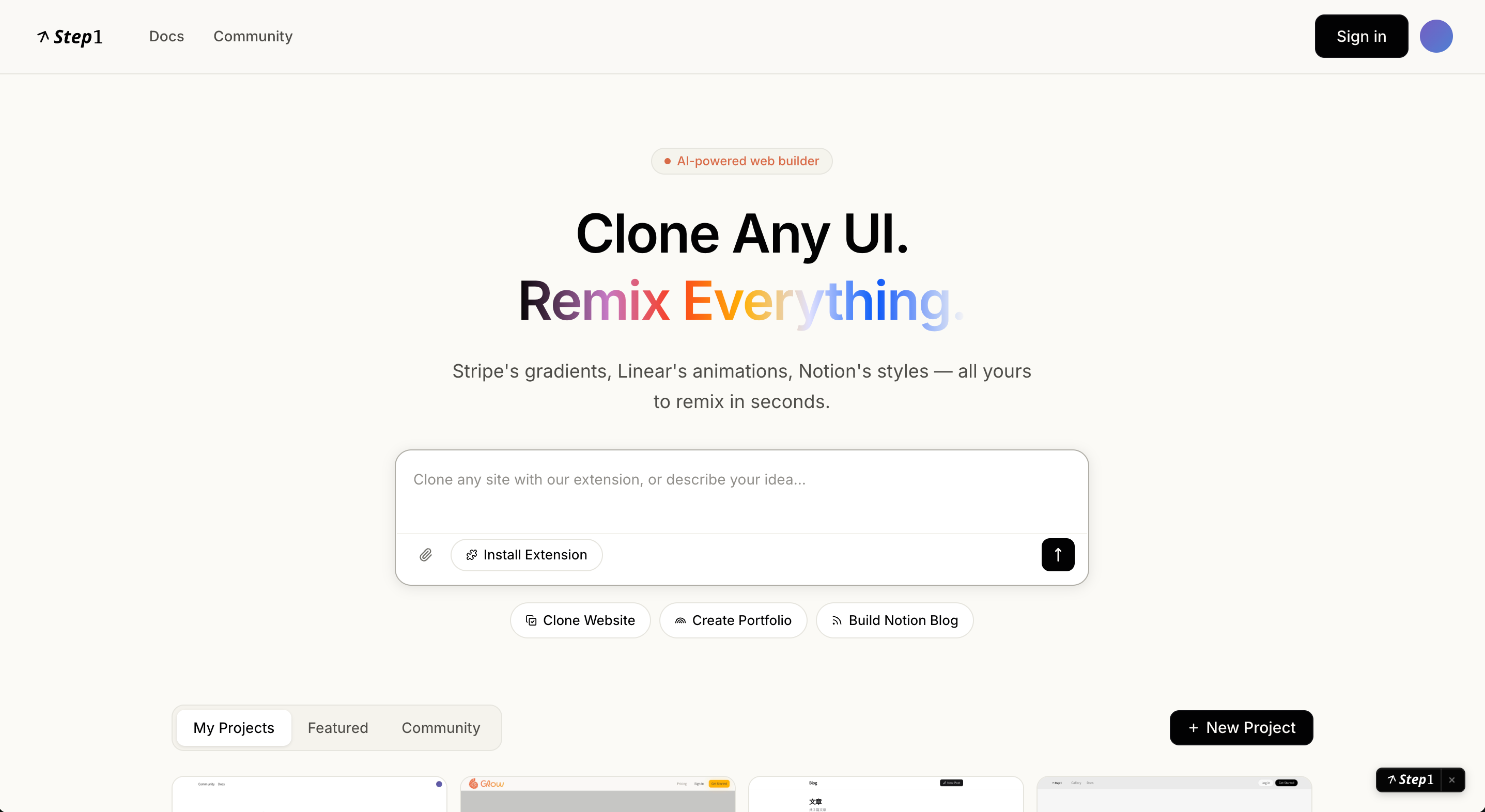
How It Works
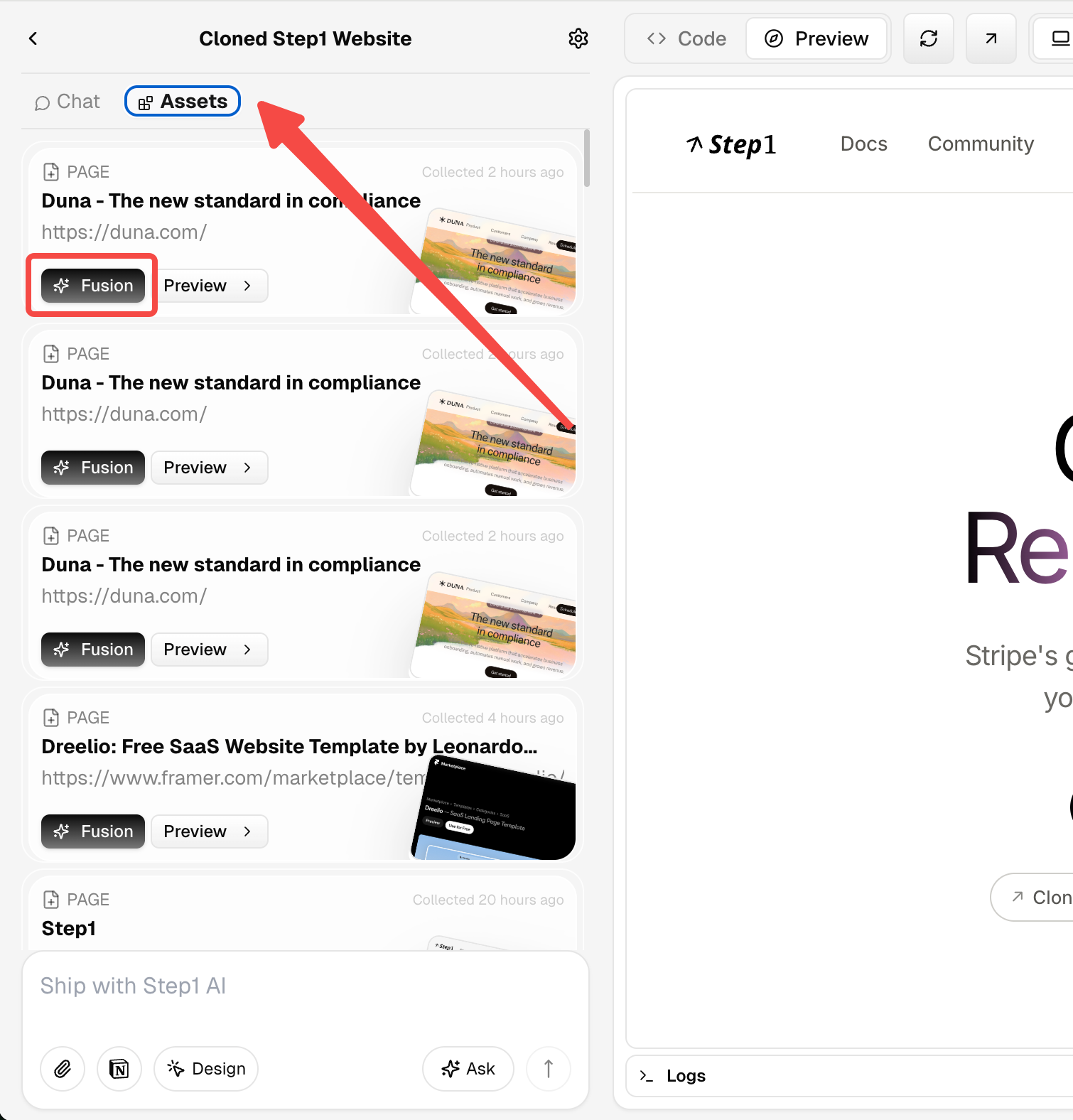
Step 1: Select a Reference Page and Activate Fusion
In the Assets panel on the left side of the editor, find the reference page you’ve collected (e.g., Raycast, Linear, or Stripe’s homepage). Click the Fusion button on that asset card to tell the AI you want to borrow from this page.Haven’t collected a reference page yet? Clone the target website first using the browser extension—it will appear in the Assets panel automatically.
Step 2: Pick the Design You Want
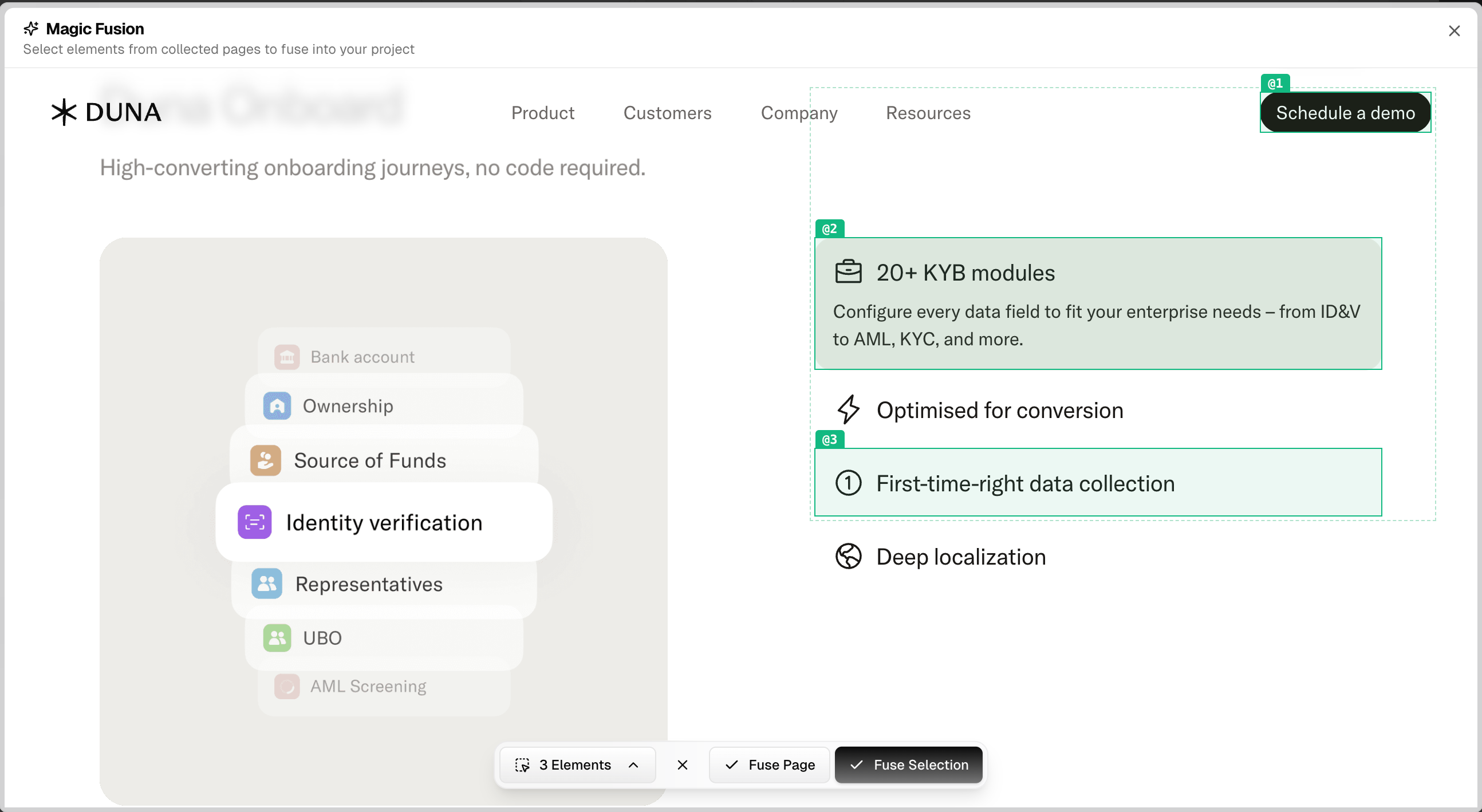
The Magic Fusion window opens with the full reference page displayed interactively.- Hover over any section to highlight it with a blue outline
- Click to select it—it turns green
- Fuse entire page: click Fuse Page to use the whole webpage as a reference
Step 3: Tell AI What to Do With It
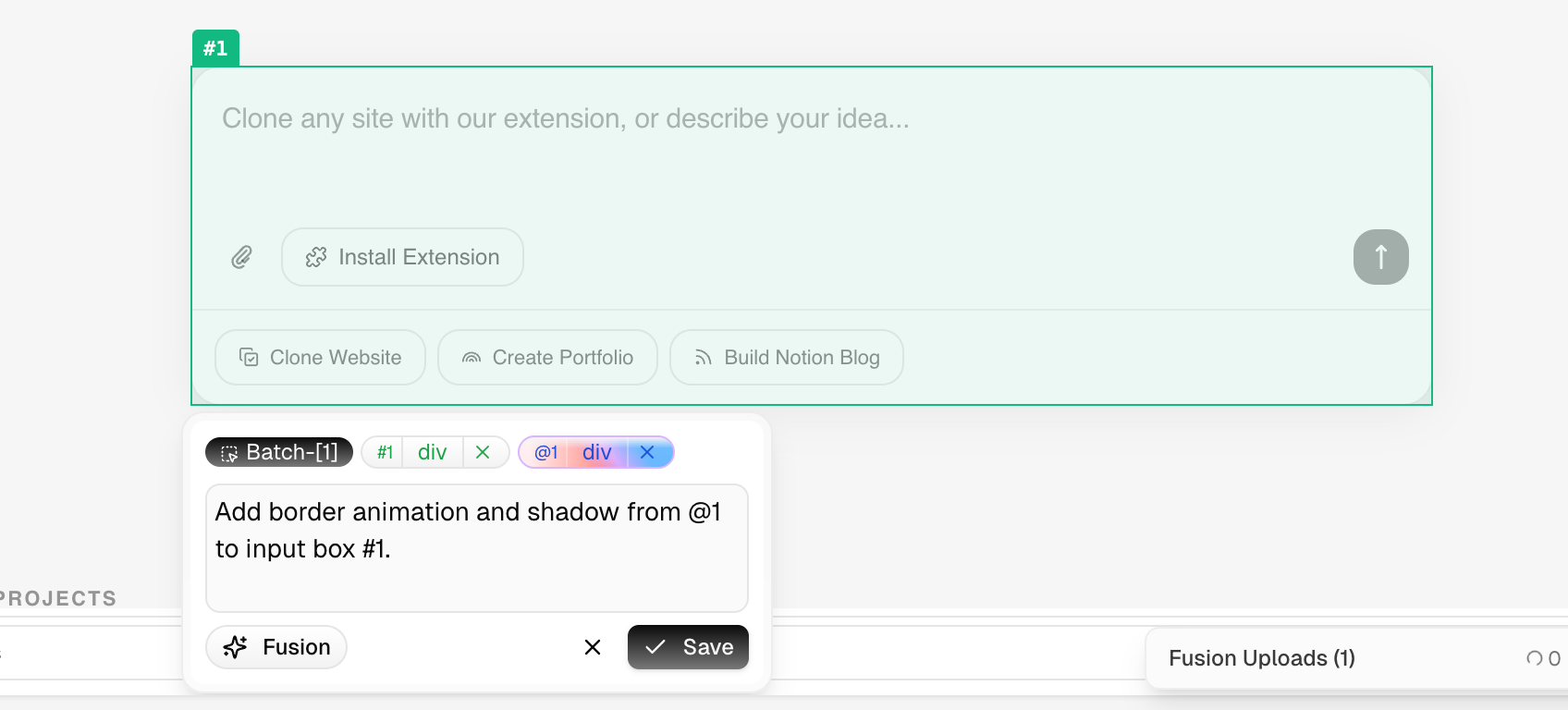
Click Fuse Selection to return to the main editor. In the AI chat, describe what you want in natural language. You don’t have to take everything—you can extract a single visual detail, reuse an entire block, or just borrow the overall style. Just describe where it should go, what to keep, and what to adjust. See the section below for more examples.Example instructions:
- “Borrow only the color palette and font weights, don’t change my existing layout”
- “Apply this card’s shadow and border radius style to my product list”
Step 4: AI Completes the Fusion
AI blends the selected design into your project, automatically matching your existing colors, fonts, and layout.Advanced: Fuse Precisely onto a Specific Component
By default, Fusion applies to the whole project. If you only want to apply a design to one specific component, combine it with Visual Edit for precise targeting:- Enter Visual Edit mode and click to select the target component in the page preview (multi-select supported).
- Click the Fusion button in the bottom-left, then select the design you want to fuse.
- AI detects your selected area and applies the fusion precisely to that component—everything else stays untouched.
What You Can Do With It
Magic Fusion understands far more than a screenshot—it perceives all visible and invisible design information in a page. Tell the AI what you want in natural language, and it transplants it precisely into your project. The more specific your description, the more accurate the fusion—from a single button’s border effect to an entire site’s visual language.What You Can Extract
Color & Visual Style
Color system, type scale, border radius, shadowse.g. Stripe’s blue-purple gradient, Linear’s dark color spec
Animations & Micro-interactions
Button effects, card hovers, glowing borders, entrance animationse.g. Raycast’s Hero glow, Linear’s shadow spread
Layout Structure
Multi-column grids, image-text symmetry, feature card groupse.g. Vercel’s three-column Grid, Notion’s staggered blocks
Scroll & Transition Effects
Horizontal scroll track, edge fade masks, scroll entrancee.g. Apple’s parallax, Raycast’s sliding plugin showcase
Component Details
Frosted glass nav, label badges, input focus statese.g. Vercel’s topbar, Stripe’s form highlight
Overall Brand Feel
The overall design language—hard to describe but easy to feele.g. “Raycast’s dark refined feel”, “Notion’s restrained whitespace”
Use Case Scenarios
Replicate a Specific Effect You Love
Replicate a Specific Effect You Love
Spotted a glowing border animation on Linear’s button and want it in your project?Select that button and tell AI:
“Fuse this button’s glowing border effect into my CTA button, keep my brand color”AI precisely understands how the effect works and transplants it directly—no guessing, no rewriting from scratch.
Migrate an Entire Site's Visual Style
Migrate an Entire Site's Visual Style
Want to use Stripe’s design language as the visual foundation for your project?Select the entire page and tell AI:
“Extract this page’s complete visual style—color system, type scale, spacing rhythm—and use it as the design foundation for my project”AI systematically understands the design language and migrates it to your project.
Take the Best From Multiple Sites
Take the Best From Multiple Sites
Love Raycast’s animation quality, Vercel’s color palette, and Linear’s card layout?Run Fusion three times, extracting a different dimension each time:
First: “Apply this site’s color style to my whole project” Second: “Fuse this card group’s animation into my Features section, keep the colors unchanged” Third: “Replace my current nav with this navigation’s layout and frosted glass effect”Each operation stacks independently—nothing gets overwritten.
Let AI Scan a Site First
Let AI Scan a Site First
Not sure what’s worth borrowing from a site? Start with a full overview:
“Analyze this site’s main sections, reusable components, and the top design highlights you think stand out”AI gives you a structured analysis report. Then pick the parts you want and do targeted extraction.
Quickly Decide Between Design Directions
Quickly Decide Between Design Directions
Redesigning a landing page and can’t decide which visual direction to take?Run Fusion with a few different reference sites, roll back after each one, then try the next. See your actual page in different design languages in minutes—make decisions based on real results, not imagination.
FAQ
Can animations be fused too?
Can animations be fused too?
Yes. Step1.dev captures the actual design from the page (not a screenshot), so animations, gradients, frosted glass effects, and other visual styles all transfer accurately.
Will I need to manually adjust anything after fusion?
Will I need to manually adjust anything after fusion?
Usually not. AI automatically adapts the fused element to match your project’s style. If something isn’t quite right, just describe the adjustment in the chat—or roll back and try again.
Is the reference site's content stored?
Is the reference site's content stored?
No. Reference page data is only used for the current fusion and is not stored for any other purpose.
Learn More
Quick Start
The full onboarding flow from clone to fusion
Prompt Guide
Magic Fusion tips and best practices