> ## Documentation Index
> Fetch the complete documentation index at: https://docs.step1.dev/llms.txt
> Use this file to discover all available pages before exploring further.
# Visual Edit
> Click any element and describe the change—no need to explain where it is
Visual Edit lets you click directly on elements in the page preview and describe what you want changed—no need to explain "the button in the top-right corner" in the AI chat. When you know exactly what to change and where, this is the fastest way to do it.
{/*
*/}
***
## How to Use Visual Edit
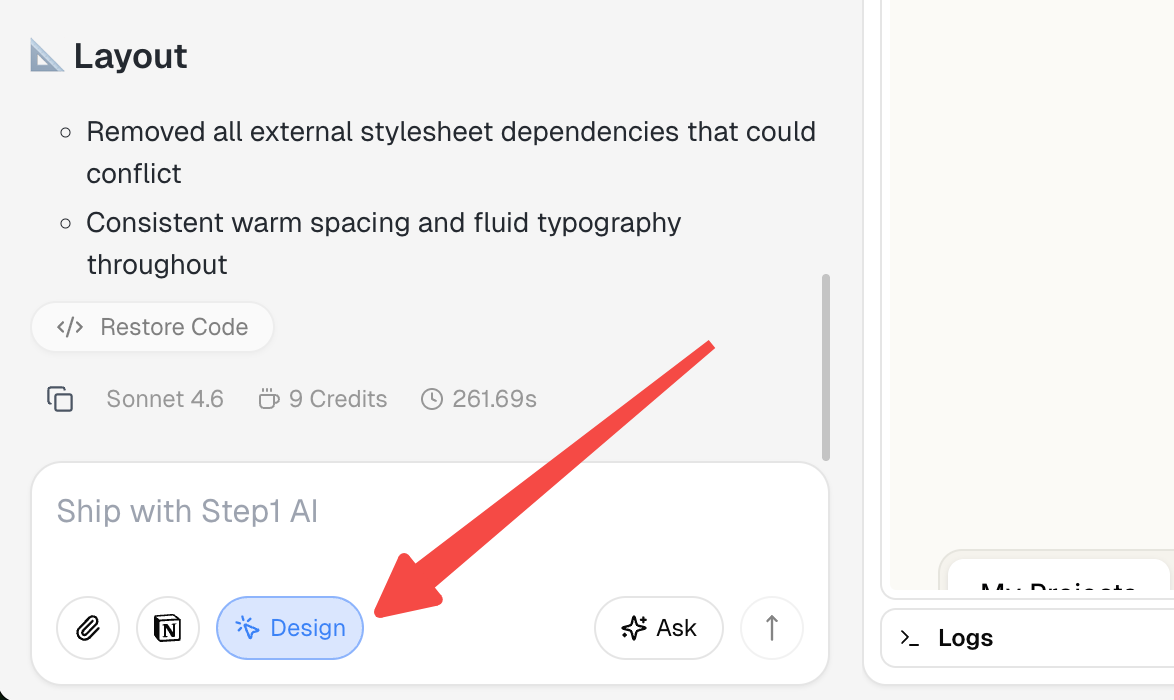
Click the **Design** button in the bottom-left corner of the editor to enter Visual Edit mode.
 Hover over any area—it highlights with a **blue outline**. Click to select it—it turns **green**.
You can **click multiple elements** to select them all at once. Each gets an auto-assigned number (#1, #2…). Multi-select lets you express operations that a single element can't describe—like swapping two sections, changing a row of cards to a vertical stack, or aligning styles across multiple elements at once.
Hover over any area—it highlights with a **blue outline**. Click to select it—it turns **green**.
You can **click multiple elements** to select them all at once. Each gets an auto-assigned number (#1, #2…). Multi-select lets you express operations that a single element can't describe—like swapping two sections, changing a row of cards to a vertical stack, or aligning styles across multiple elements at once.
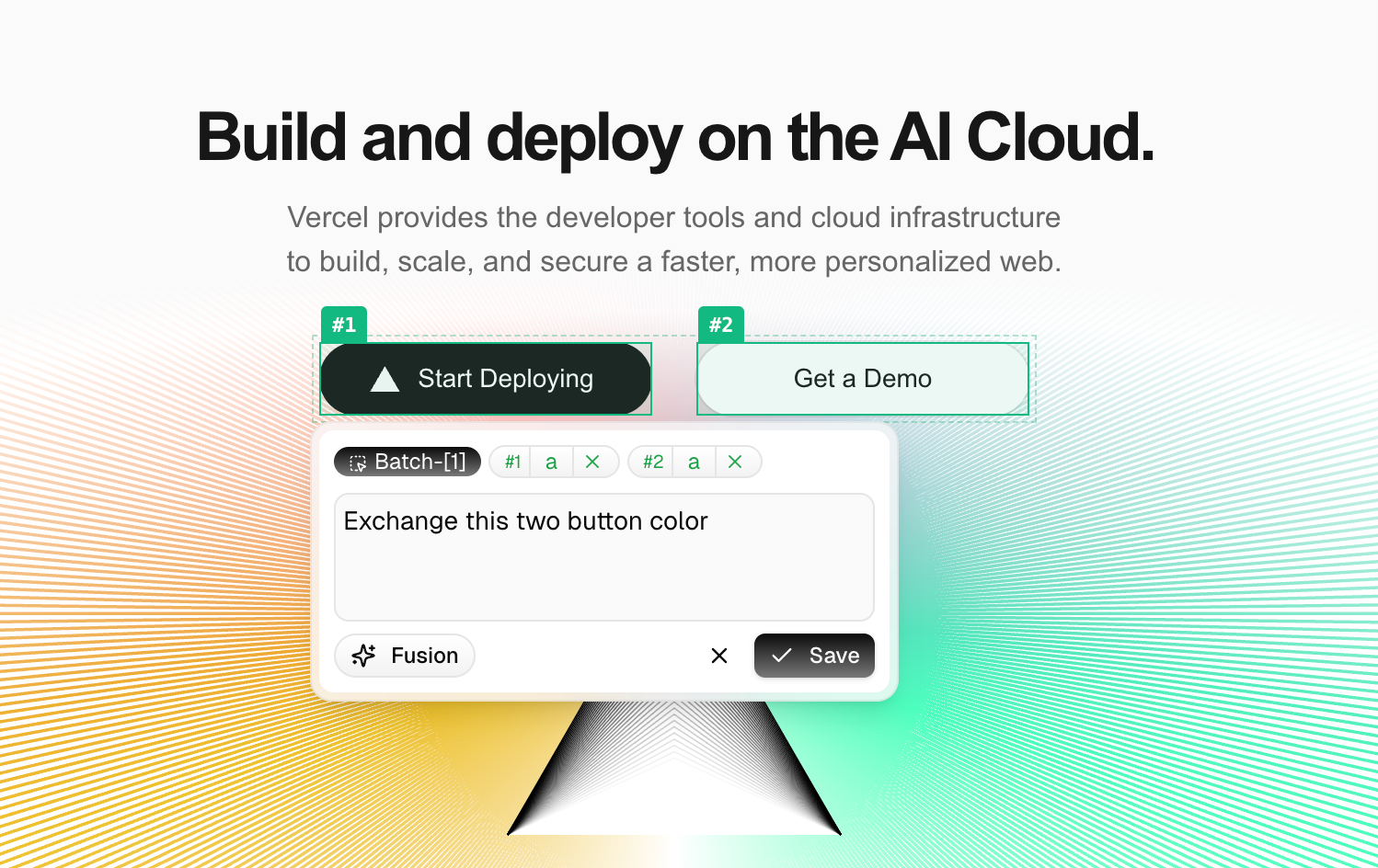 Once you've selected your elements, describe what you want in the chat. Use the numbers to reference different elements:
Example: "Swap #1 and #2 left-to-right; change #3 #4 #5 from horizontal to vertical stack with 24px gap"
Click **Save**. AI modifies only the elements you selected—everything else stays the same.
***
## Multi-Element Coordination
Visual Edit supports selecting multiple elements at once, unlocking cross-element adjustments that can all be done in a single instruction:
Select two sections on the page (#1 Hero, #2 Features) and describe:
> "Swap the positions of #1 and #2, leave everything else unchanged"
Great for quickly testing different information hierarchies—show product value first or lead with features.
Select a row of Feature Cards (#1 #2 #3) and describe:
> "Change #1 #2 #3 from a three-column horizontal layout to a single-column vertical stack, cards full-width, 24px gap"
AI treats the whole group as one layout unit—alignment and spacing done in one pass.
Select a heading, subheading, and CTA button (#1 #2 #3) and describe:
> "Set #1 #2 #3 text color to #0F172A. #1 font-weight 700, #2 font-weight 400, #3 keep existing weight"
AI has the full context of all three elements and generates consistent styles in one shot.
Select the left image and right text block (#1 image, #2 text) and describe:
> "Swap #1 and #2 left-to-right—image on the right, text on the left, keep the two-column layout intact"
AI understands this is a symmetric image-text structure and flips it without breaking the container proportions.
Select the headlines of three Feature Cards (#1 #2 #3) and describe:
> "Rewrite all of #1 #2 #3 as action-first sentences, concise and direct, aimed at developers"
AI treats the three as one content group—tone stays naturally consistent.
***
## Visual Edit vs. AI Chat
| Situation | Recommended Approach |
| ---------------------------------------------------------- | ----------------------------------------------------------- |
| You know exactly which element to change and how | **Visual Edit** — click to select, describe precisely |
| You need to add a new feature or make major layout changes | **AI Chat** — describe the overall goal in natural language |
| You want to blend in design styles from another site | **Magic Fusion** — point-and-click + natural language |
***
## Learn More
The full create, refine, and publish workflow
Learn to use AI chat for more complex changes
Once you've selected your elements, describe what you want in the chat. Use the numbers to reference different elements:
Example: "Swap #1 and #2 left-to-right; change #3 #4 #5 from horizontal to vertical stack with 24px gap"
Click **Save**. AI modifies only the elements you selected—everything else stays the same.
***
## Multi-Element Coordination
Visual Edit supports selecting multiple elements at once, unlocking cross-element adjustments that can all be done in a single instruction:
Select two sections on the page (#1 Hero, #2 Features) and describe:
> "Swap the positions of #1 and #2, leave everything else unchanged"
Great for quickly testing different information hierarchies—show product value first or lead with features.
Select a row of Feature Cards (#1 #2 #3) and describe:
> "Change #1 #2 #3 from a three-column horizontal layout to a single-column vertical stack, cards full-width, 24px gap"
AI treats the whole group as one layout unit—alignment and spacing done in one pass.
Select a heading, subheading, and CTA button (#1 #2 #3) and describe:
> "Set #1 #2 #3 text color to #0F172A. #1 font-weight 700, #2 font-weight 400, #3 keep existing weight"
AI has the full context of all three elements and generates consistent styles in one shot.
Select the left image and right text block (#1 image, #2 text) and describe:
> "Swap #1 and #2 left-to-right—image on the right, text on the left, keep the two-column layout intact"
AI understands this is a symmetric image-text structure and flips it without breaking the container proportions.
Select the headlines of three Feature Cards (#1 #2 #3) and describe:
> "Rewrite all of #1 #2 #3 as action-first sentences, concise and direct, aimed at developers"
AI treats the three as one content group—tone stays naturally consistent.
***
## Visual Edit vs. AI Chat
| Situation | Recommended Approach |
| ---------------------------------------------------------- | ----------------------------------------------------------- |
| You know exactly which element to change and how | **Visual Edit** — click to select, describe precisely |
| You need to add a new feature or make major layout changes | **AI Chat** — describe the overall goal in natural language |
| You want to blend in design styles from another site | **Magic Fusion** — point-and-click + natural language |
***
## Learn More
The full create, refine, and publish workflow
Learn to use AI chat for more complex changes