> ## Documentation Index
> Fetch the complete documentation index at: https://docs.step1.dev/llms.txt
> Use this file to discover all available pages before exploring further.
# Magic Fusion
> Fuse any design from the web into your project in seconds
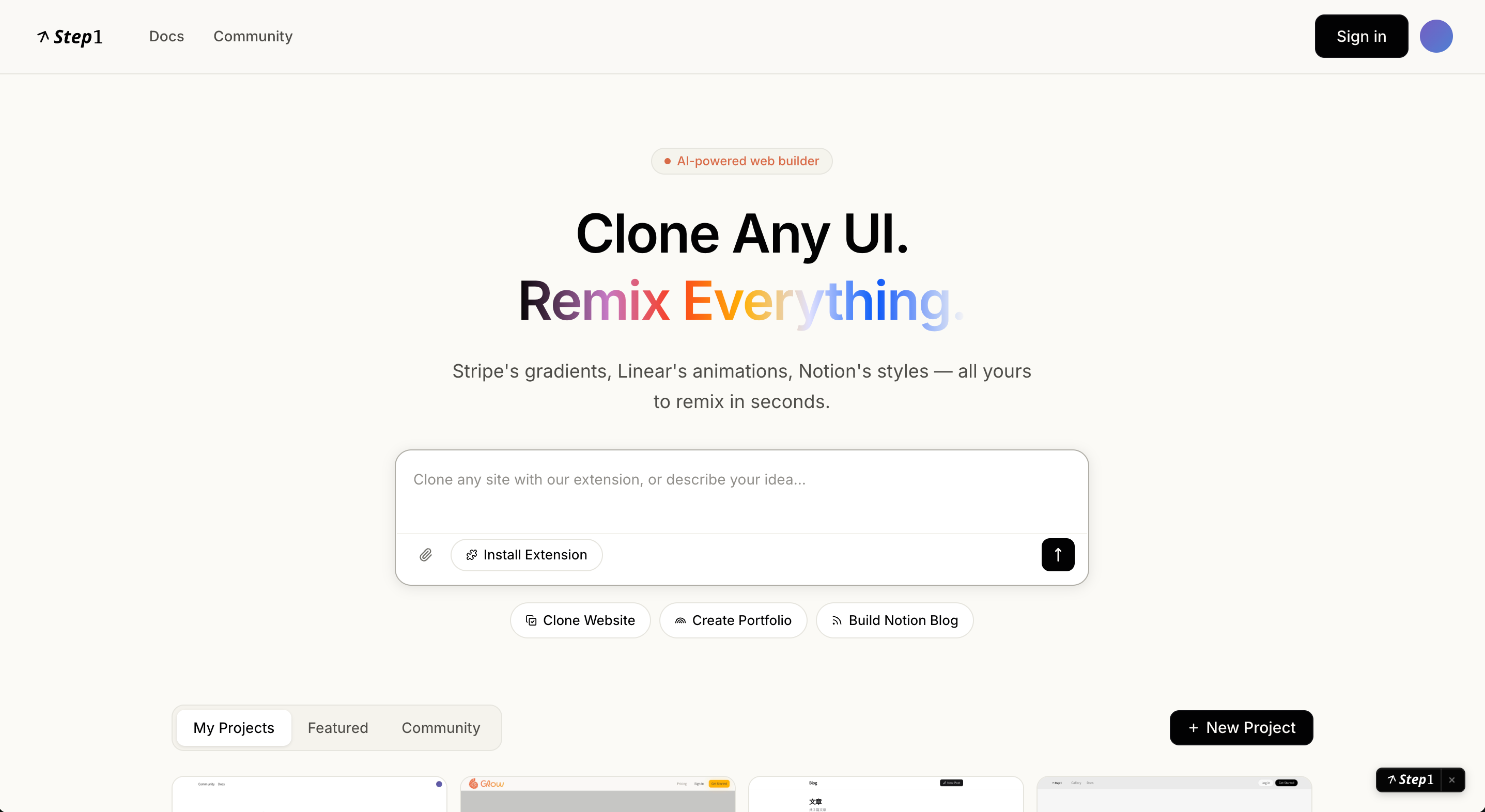
Magic Fusion lets you pull design elements or styles from any website and blend them into your own project—just point, click, and describe what you want. No design skills or technical knowledge required.
 ## How It Works
### Step 1: Select a Reference Page and Activate Fusion
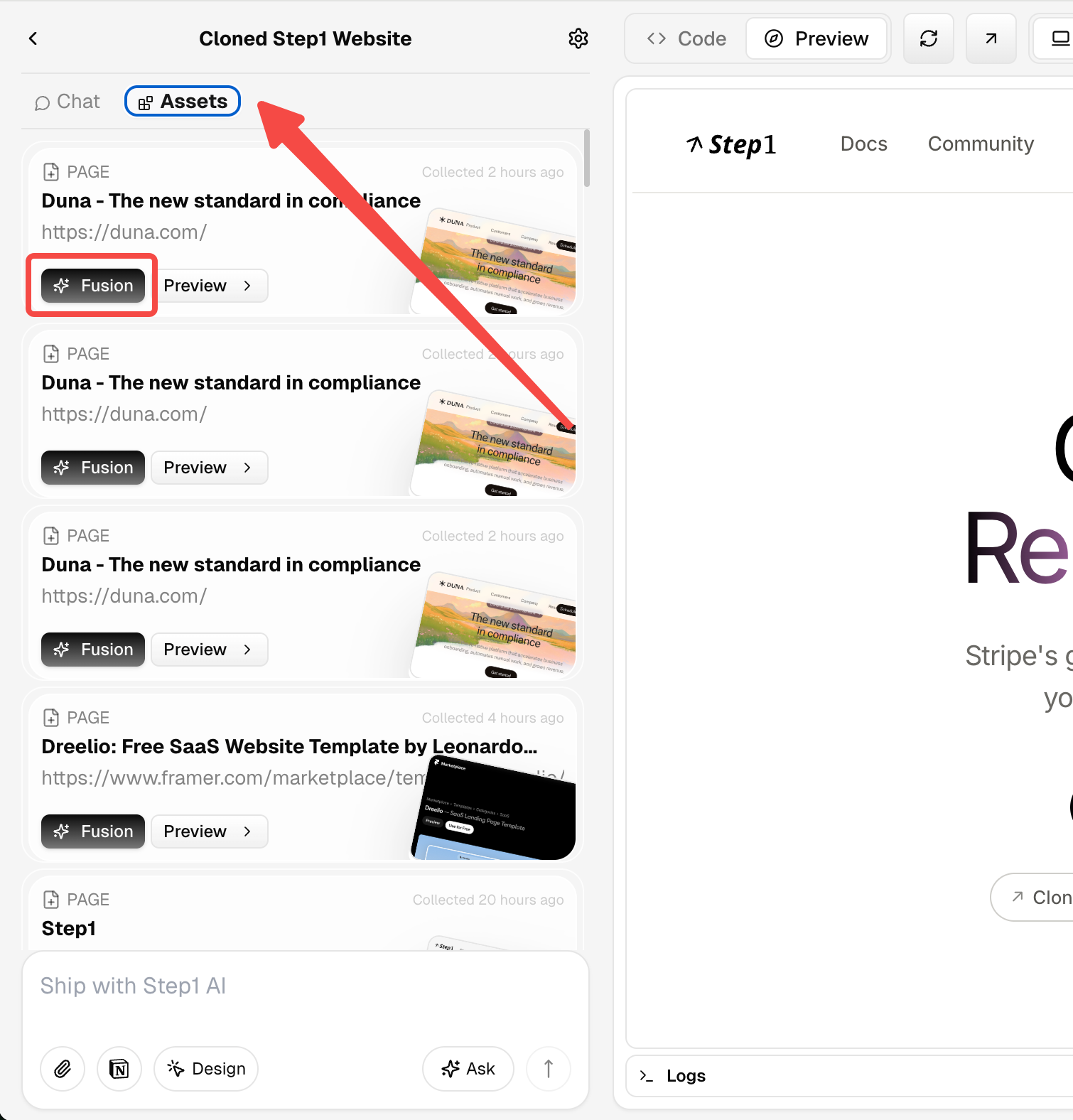
In the **Assets** panel on the left side of the editor, find the reference page you've collected (e.g., Raycast, Linear, or Stripe's homepage).
Click the **Fusion** button on that asset card to tell the AI you want to borrow from this page.
Haven't collected a reference page yet? Clone the target website first using the browser extension—it will appear in the Assets panel automatically.
### Step 2: Pick the Design You Want
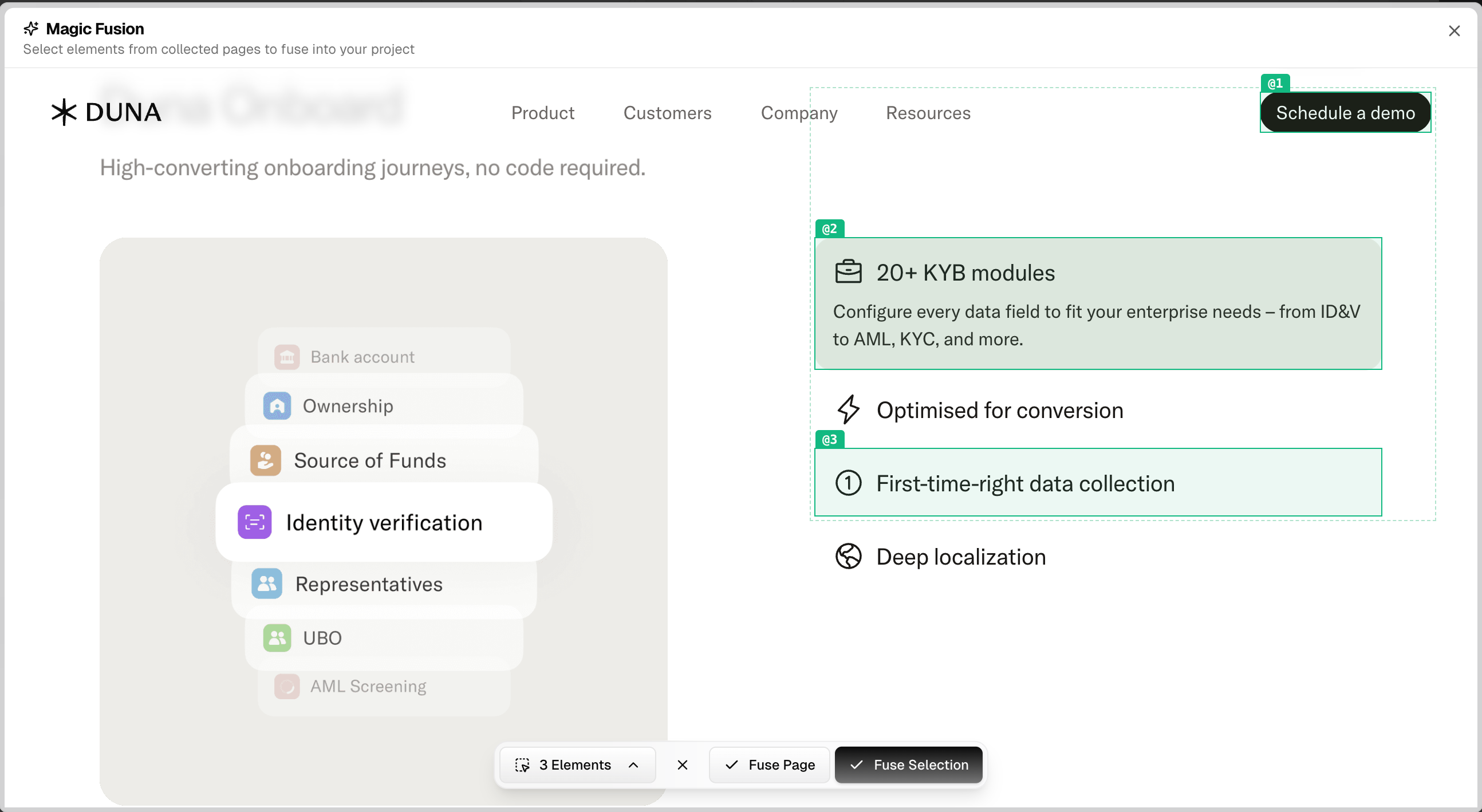
The **Magic Fusion** window opens with the full reference page displayed interactively.
* **Hover** over any section to highlight it with a **blue outline**
* **Click** to select it—it turns **green**
* **Fuse entire page**: click **Fuse Page** to use the whole webpage as a reference
**Selection tips:**
* You can select a single element (button, card, animation, etc.) or an entire section
* More precise selections give you more control over the result
* When fusing an entire page, AI analyzes the site's overall style, structure, and colors—but it's less precise than selecting a specific element
## How It Works
### Step 1: Select a Reference Page and Activate Fusion
In the **Assets** panel on the left side of the editor, find the reference page you've collected (e.g., Raycast, Linear, or Stripe's homepage).
Click the **Fusion** button on that asset card to tell the AI you want to borrow from this page.
Haven't collected a reference page yet? Clone the target website first using the browser extension—it will appear in the Assets panel automatically.
### Step 2: Pick the Design You Want
The **Magic Fusion** window opens with the full reference page displayed interactively.
* **Hover** over any section to highlight it with a **blue outline**
* **Click** to select it—it turns **green**
* **Fuse entire page**: click **Fuse Page** to use the whole webpage as a reference
**Selection tips:**
* You can select a single element (button, card, animation, etc.) or an entire section
* More precise selections give you more control over the result
* When fusing an entire page, AI analyzes the site's overall style, structure, and colors—but it's less precise than selecting a specific element
 ### Step 3: Tell AI What to Do With It
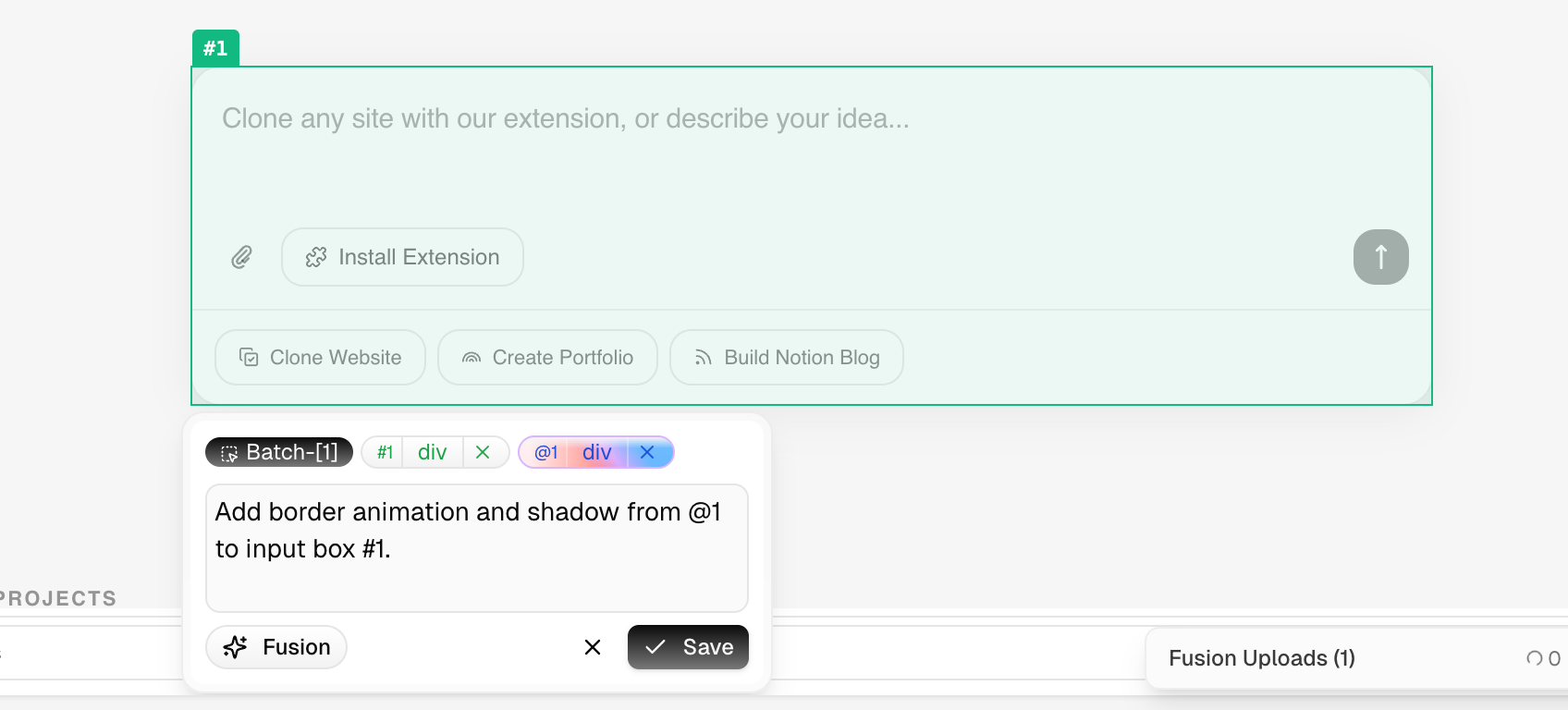
Click **Fuse Selection** to return to the main editor. In the **AI chat**, describe what you want in natural language.
You don't have to take everything—you can extract a single visual detail, reuse an entire block, or just borrow the overall style. Just describe where it should go, what to keep, and what to adjust. See the [section below](#what-you-can-do-with-it) for more examples.
Example instructions:
* "Borrow only the color palette and font weights, don't change my existing layout"
* "Apply this card's shadow and border radius style to my product list"
### Step 4: AI Completes the Fusion
AI blends the selected design into your project, automatically matching your existing colors, fonts, and layout.
### Advanced: Fuse Precisely onto a Specific Component
By default, Fusion applies to the whole project. If you only want to apply a design to one specific component, combine it with **Visual Edit** for precise targeting:
1. Enter Visual Edit mode and click to select the target component in the page preview (multi-select supported).
2. Click the **Fusion** button in the bottom-left, then select the design you want to fuse.
3. AI detects your selected area and applies the fusion precisely to that component—everything else stays untouched.
### Step 3: Tell AI What to Do With It
Click **Fuse Selection** to return to the main editor. In the **AI chat**, describe what you want in natural language.
You don't have to take everything—you can extract a single visual detail, reuse an entire block, or just borrow the overall style. Just describe where it should go, what to keep, and what to adjust. See the [section below](#what-you-can-do-with-it) for more examples.
Example instructions:
* "Borrow only the color palette and font weights, don't change my existing layout"
* "Apply this card's shadow and border radius style to my product list"
### Step 4: AI Completes the Fusion
AI blends the selected design into your project, automatically matching your existing colors, fonts, and layout.
### Advanced: Fuse Precisely onto a Specific Component
By default, Fusion applies to the whole project. If you only want to apply a design to one specific component, combine it with **Visual Edit** for precise targeting:
1. Enter Visual Edit mode and click to select the target component in the page preview (multi-select supported).
2. Click the **Fusion** button in the bottom-left, then select the design you want to fuse.
3. AI detects your selected area and applies the fusion precisely to that component—everything else stays untouched.
 ***
## What You Can Do With It
Magic Fusion understands far more than a screenshot—it perceives all visible and invisible design information in a page. Tell the AI what you want in natural language, and it transplants it precisely into your project.
**The more specific your description, the more accurate the fusion**—from a single button's border effect to an entire site's visual language.
### What You Can Extract
Color system, type scale, border radius, shadows
*e.g. Stripe's blue-purple gradient, Linear's dark color spec*
Button effects, card hovers, glowing borders, entrance animations
*e.g. Raycast's Hero glow, Linear's shadow spread*
Multi-column grids, image-text symmetry, feature card groups
*e.g. Vercel's three-column Grid, Notion's staggered blocks*
Horizontal scroll track, edge fade masks, scroll entrance
*e.g. Apple's parallax, Raycast's sliding plugin showcase*
Frosted glass nav, label badges, input focus states
*e.g. Vercel's topbar, Stripe's form highlight*
The overall design language—hard to describe but easy to feel
*e.g. "Raycast's dark refined feel", "Notion's restrained whitespace"*
### Use Case Scenarios
Spotted a glowing border animation on Linear's button and want it in your project?
Select that button and tell AI:
> "Fuse this button's glowing border effect into my CTA button, keep my brand color"
AI precisely understands how the effect works and transplants it directly—no guessing, no rewriting from scratch.
Want to use Stripe's design language as the visual foundation for your project?
Select the entire page and tell AI:
> "Extract this page's complete visual style—color system, type scale, spacing rhythm—and use it as the design foundation for my project"
AI systematically understands the design language and migrates it to your project.
Love Raycast's animation quality, Vercel's color palette, and Linear's card layout?
Run Fusion three times, extracting a different dimension each time:
> First: "Apply this site's color style to my whole project"
> Second: "Fuse this card group's animation into my Features section, keep the colors unchanged"
> Third: "Replace my current nav with this navigation's layout and frosted glass effect"
Each operation stacks independently—nothing gets overwritten.
Not sure what's worth borrowing from a site? Start with a full overview:
> "Analyze this site's main sections, reusable components, and the top design highlights you think stand out"
AI gives you a structured analysis report. Then pick the parts you want and do targeted extraction.
Redesigning a landing page and can't decide which visual direction to take?
Run Fusion with a few different reference sites, roll back after each one, then try the next. See your actual page in different design languages in minutes—make decisions based on real results, not imagination.
The more specific your description, the more accurate the result. Try naming the effect you want directly—like "the scroll fade-out on this section" or "the card lift animation on hover"—and AI will locate and extract it precisely.
***
## FAQ
Yes. Step1.dev captures the actual design from the page (not a screenshot), so animations, gradients, frosted glass effects, and other visual styles all transfer accurately.
Usually not. AI automatically adapts the fused element to match your project's style. If something isn't quite right, just describe the adjustment in the chat—or roll back and try again.
No. Reference page data is only used for the current fusion and is not stored for any other purpose.
***
## Learn More
The full onboarding flow from clone to fusion
Magic Fusion tips and best practices
***
## What You Can Do With It
Magic Fusion understands far more than a screenshot—it perceives all visible and invisible design information in a page. Tell the AI what you want in natural language, and it transplants it precisely into your project.
**The more specific your description, the more accurate the fusion**—from a single button's border effect to an entire site's visual language.
### What You Can Extract
Color system, type scale, border radius, shadows
*e.g. Stripe's blue-purple gradient, Linear's dark color spec*
Button effects, card hovers, glowing borders, entrance animations
*e.g. Raycast's Hero glow, Linear's shadow spread*
Multi-column grids, image-text symmetry, feature card groups
*e.g. Vercel's three-column Grid, Notion's staggered blocks*
Horizontal scroll track, edge fade masks, scroll entrance
*e.g. Apple's parallax, Raycast's sliding plugin showcase*
Frosted glass nav, label badges, input focus states
*e.g. Vercel's topbar, Stripe's form highlight*
The overall design language—hard to describe but easy to feel
*e.g. "Raycast's dark refined feel", "Notion's restrained whitespace"*
### Use Case Scenarios
Spotted a glowing border animation on Linear's button and want it in your project?
Select that button and tell AI:
> "Fuse this button's glowing border effect into my CTA button, keep my brand color"
AI precisely understands how the effect works and transplants it directly—no guessing, no rewriting from scratch.
Want to use Stripe's design language as the visual foundation for your project?
Select the entire page and tell AI:
> "Extract this page's complete visual style—color system, type scale, spacing rhythm—and use it as the design foundation for my project"
AI systematically understands the design language and migrates it to your project.
Love Raycast's animation quality, Vercel's color palette, and Linear's card layout?
Run Fusion three times, extracting a different dimension each time:
> First: "Apply this site's color style to my whole project"
> Second: "Fuse this card group's animation into my Features section, keep the colors unchanged"
> Third: "Replace my current nav with this navigation's layout and frosted glass effect"
Each operation stacks independently—nothing gets overwritten.
Not sure what's worth borrowing from a site? Start with a full overview:
> "Analyze this site's main sections, reusable components, and the top design highlights you think stand out"
AI gives you a structured analysis report. Then pick the parts you want and do targeted extraction.
Redesigning a landing page and can't decide which visual direction to take?
Run Fusion with a few different reference sites, roll back after each one, then try the next. See your actual page in different design languages in minutes—make decisions based on real results, not imagination.
The more specific your description, the more accurate the result. Try naming the effect you want directly—like "the scroll fade-out on this section" or "the card lift animation on hover"—and AI will locate and extract it precisely.
***
## FAQ
Yes. Step1.dev captures the actual design from the page (not a screenshot), so animations, gradients, frosted glass effects, and other visual styles all transfer accurately.
Usually not. AI automatically adapts the fused element to match your project's style. If something isn't quite right, just describe the adjustment in the chat—or roll back and try again.
No. Reference page data is only used for the current fusion and is not stored for any other purpose.
***
## Learn More
The full onboarding flow from clone to fusion
Magic Fusion tips and best practices