> ## Documentation Index
> Fetch the complete documentation index at: https://docs.step1.dev/llms.txt
> Use this file to discover all available pages before exploring further.
# Pixel-Perfect Clone
> Clone any website in one click—identical to the original
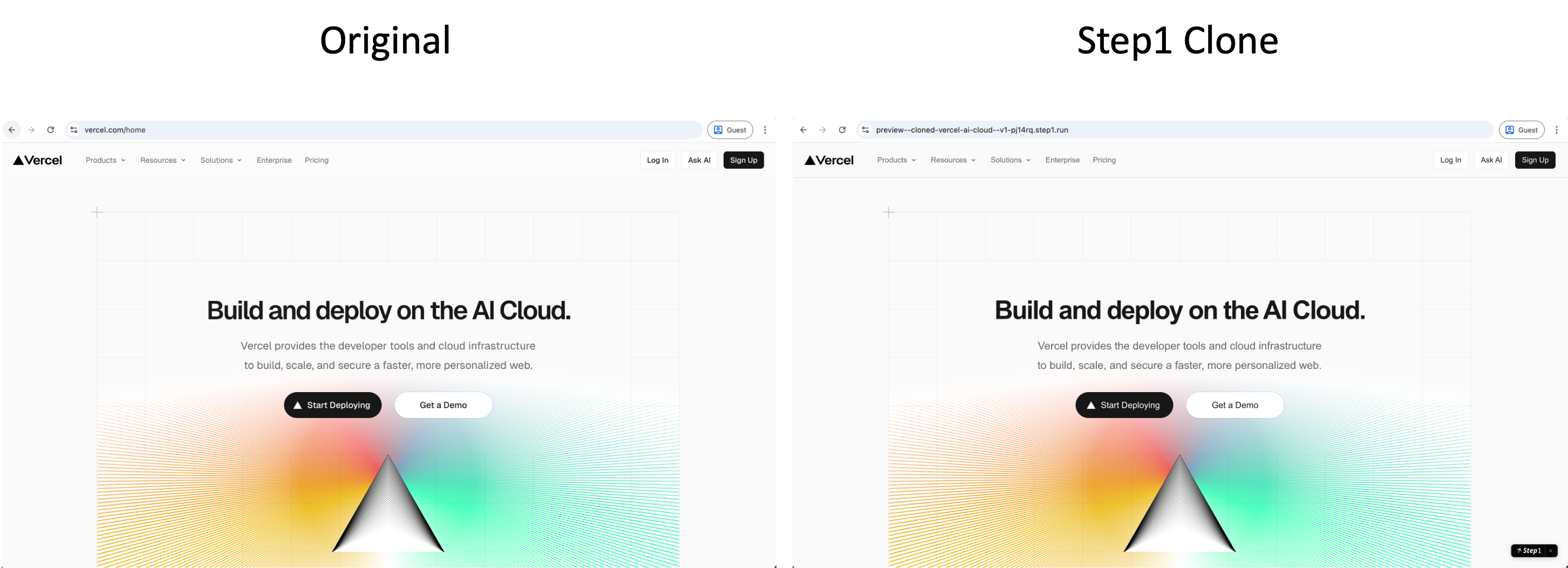
Use the browser extension to clone any website you like—not an approximation, not a screenshot interpretation, but an exact copy. Once cloned, just tell the AI what changes you want.
 ***
## How to Clone a Website
Install the Step1.dev extension from the [Chrome Web Store](https://chromewebstore.google.com/detail/ai-site-cloner-clone-any/kadbegcbiplbenlokcdjkmicjaophmif). Once installed, the icon appears in your browser toolbar.
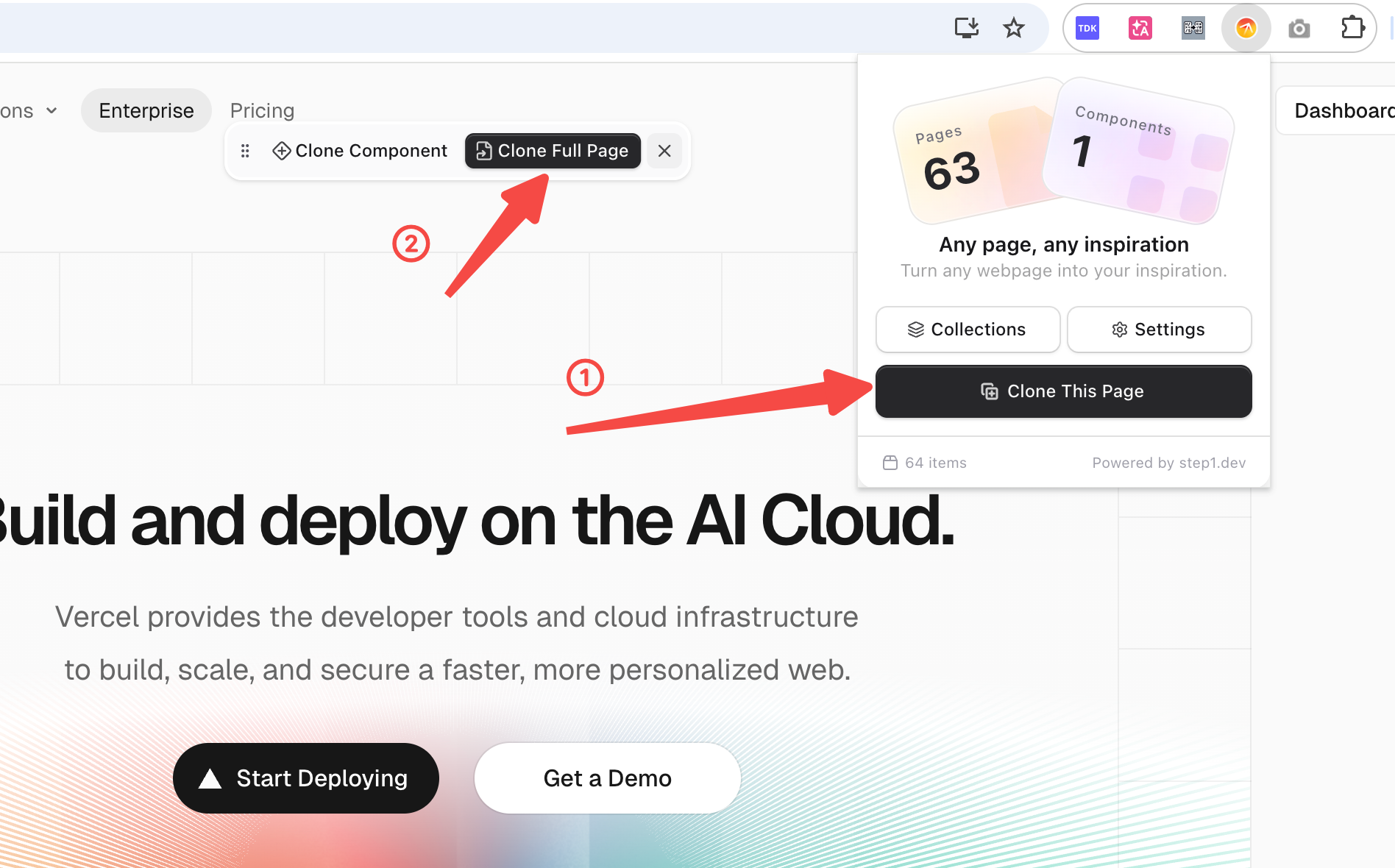
Navigate to the site you want to clone. Click the Step1.dev extension icon in the toolbar, then click **Clone This Page** in the popup. Once you hover over page elements, an action bar appears at the top—select **Clone Full Page** to clone the entire page, or **Clone Component** to clone just that element.
***
## How to Clone a Website
Install the Step1.dev extension from the [Chrome Web Store](https://chromewebstore.google.com/detail/ai-site-cloner-clone-any/kadbegcbiplbenlokcdjkmicjaophmif). Once installed, the icon appears in your browser toolbar.
Navigate to the site you want to clone. Click the Step1.dev extension icon in the toolbar, then click **Clone This Page** in the popup. Once you hover over page elements, an action bar appears at the top—select **Clone Full Page** to clone the entire page, or **Clone Component** to clone just that element.
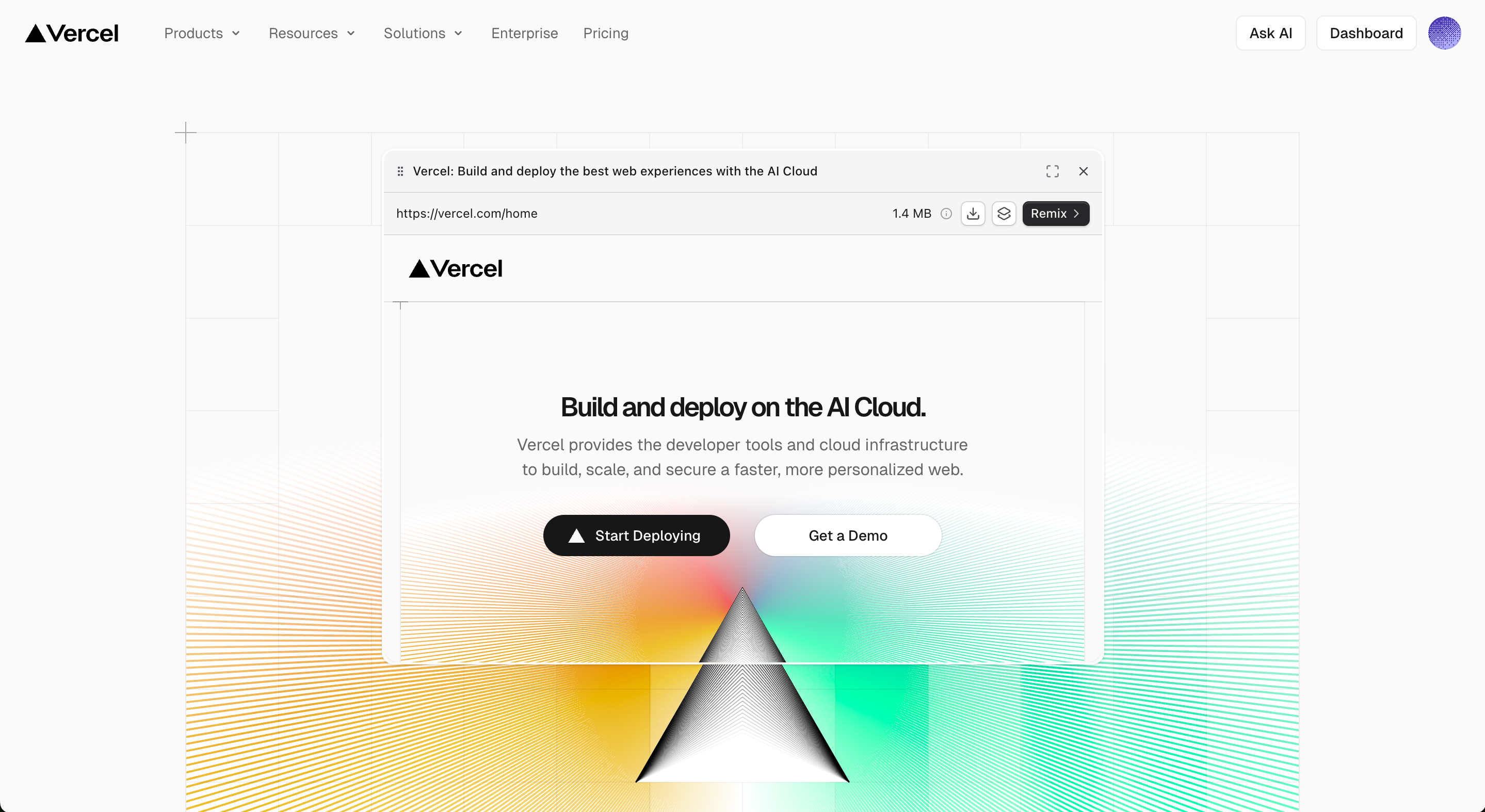
 Once captured, click **Remix**—Step1.dev analyzes the page and opens it in the editor automatically. The cloned version is ready instantly.
 Describe your changes in the AI chat—swap the logo, update the copy, change the colors, or add new features.
Example: "Replace the navbar logo with ours, update all copy to English, and change the primary color to deep blue."
Every change auto-deploys instantly. Click the button in the top-right to share your live link.
***
## Use Cases
See a design you love? Clone it as your starting point, then swap in your own content.
**Best for:**
* Cloning a competitor or inspiration site as a design foundation
* Upgrading the look of sites generated by v0 / Lovable / Bolt
Bring your current website into Step1.dev and keep building on top of it—no need to start over.
The process is the same as cloning—open your existing site, click the extension, and it imports directly into the editor.
Example: "Keep the overall layout. Change the card section to three columns and add a hover animation."
**Best for:**
* Redesigning or upgrading an existing site
* Importing an older site to fuse in new design elements
***
## Common Next Steps After Cloning
The first thing after cloning is usually swapping the original site's branding with your own. Do it all in one instruction:
Example: "Replace the logo with the uploaded image, change all brand names to our product name, update the primary color to #0066FF, and update the Hero headline to: Build your product faster."
Not satisfied with the cloned design? Use Magic Fusion to blend in elements from other websites.
Extract design elements from any site with point-and-click + natural language
***
## Learn More
Blend any website's design style into your project
Clone best practices and prompt techniques
Describe your changes in the AI chat—swap the logo, update the copy, change the colors, or add new features.
Example: "Replace the navbar logo with ours, update all copy to English, and change the primary color to deep blue."
Every change auto-deploys instantly. Click the button in the top-right to share your live link.
***
## Use Cases
See a design you love? Clone it as your starting point, then swap in your own content.
**Best for:**
* Cloning a competitor or inspiration site as a design foundation
* Upgrading the look of sites generated by v0 / Lovable / Bolt
Bring your current website into Step1.dev and keep building on top of it—no need to start over.
The process is the same as cloning—open your existing site, click the extension, and it imports directly into the editor.
Example: "Keep the overall layout. Change the card section to three columns and add a hover animation."
**Best for:**
* Redesigning or upgrading an existing site
* Importing an older site to fuse in new design elements
***
## Common Next Steps After Cloning
The first thing after cloning is usually swapping the original site's branding with your own. Do it all in one instruction:
Example: "Replace the logo with the uploaded image, change all brand names to our product name, update the primary color to #0066FF, and update the Hero headline to: Build your product faster."
Not satisfied with the cloned design? Use Magic Fusion to blend in elements from other websites.
Extract design elements from any site with point-and-click + natural language
***
## Learn More
Blend any website's design style into your project
Clone best practices and prompt techniques